Overview
The Khoros Instance Notification Contacts list keeps you in the loop for:
- Release notes publication, stage upgrade completion, and production upgrade completion, as indicated in the Khoros Communities - Updated Release Process.
- Receiving proactive notifications from the support team, when the internal monitoring detects issues that require your attention/feedback.
Instead of manually contacting support, you can now use the AI Assistant to add additional email addresses to the Khoros Instance Notification Contacts.
Pre-requisites
📌 You must raise a ticket through the AI Assistant, and not through email
💡 The AI Assistant is doing some behind the curtains work to obtain instance metadata required for properly signing you up for the instance notifications.
Solution
Follow these steps to request to be added to the Upgrade Notification Contacts list:
Step 1: Launch the AI Assistant
- Login to the helpcenter using your business email address
- How to Make the Best Use of the Khoros AI Support Agent
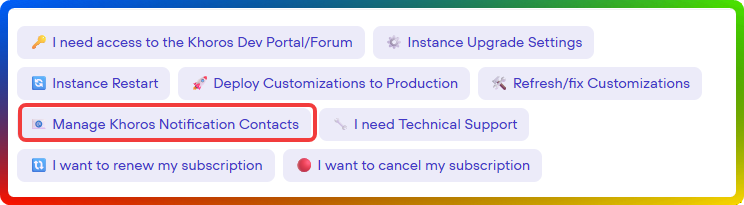
Step 2: Choose the “📧 Manage Khoros Notification Contacts” Action
-
Select from the provided options the "📧 Manage Khoros Notification Contacts" button
Step 3: Provide Required Details
The AI Assistant will ask you for:
-
Email address(es) you want to add/remove
-
PRODUCTION instance URL for which you want notifications
🔍 The production instance URL is required because notifications apply across all phases (prod, stage, preprod).
If the AI Assistant can’t locate the instance URL automatically, it will create a ticket for human support to handle.
Best Practices for Providing Input
✔ Preferred format examples:
-
“Add the following 3 email contacts to the notification list for instance X”
-
“Remove the following 3 email contacts to the notification list for instance X”
-
“Add
<email_address>to the upgrade contacts list for these instances:
• Instance 1
• Instance 2
• Instance 3
❌ Avoid combining large lists in one request:
-
“I need 10 email addresses added for 10 instances” (creates processing challenges)
Step 4: Review Progress
-
The AI Assistant will show progress as it adds contacts.
-
It will ask if you want to add more contacts or process other instances.
Need More Assistance?
If you require help that is not related to adding upgrade notification contacts, simply restart the AI Assistant chat.
Summary
-
Use the AI Assistant (not email) to add upgrade notification contacts.
-
Provide email addresses and PRODUCTION instance URLs.
-
Follow the AI Assistant’s prompts to complete the process efficiently.
FAQ
Q1: Can I add multiple emails and multiple instances in one request?
A: Yes — but it’s better to group them logically (e.g., “Add these emails for this instance”) rather than one large batch of mixed instances and emails.
Q2: What if the AI Assistant can’t find my production instance URL?
A: It will automatically create a support ticket for human action.
Q3: Can I use any email address?
A: Use valid business email addresses to ensure proper delivery of upgrade notifications.
Ciprian Nastase
Comments